The user management screen now has a clear title: Manage Location. Previously untitled, this update helps Location Admins more easily identify their location within the Case interface.
Enhanced User Table
The user list has been significantly improved. In addition to First Name, Last Name, and Username, the table now includes: Job Role, Permissions/Roles, and Last Login. Several columns can now be sorted to facilitate more straightforward navigation.
Inactive User Alerts: Users who have not logged into Case for six months or more (at the top “My Locations” level) will now be flagged.
Editing Users
To modify an existing user, click the Edit button (pencil icon) and then navigate to the Permissions tab.
Removing Access
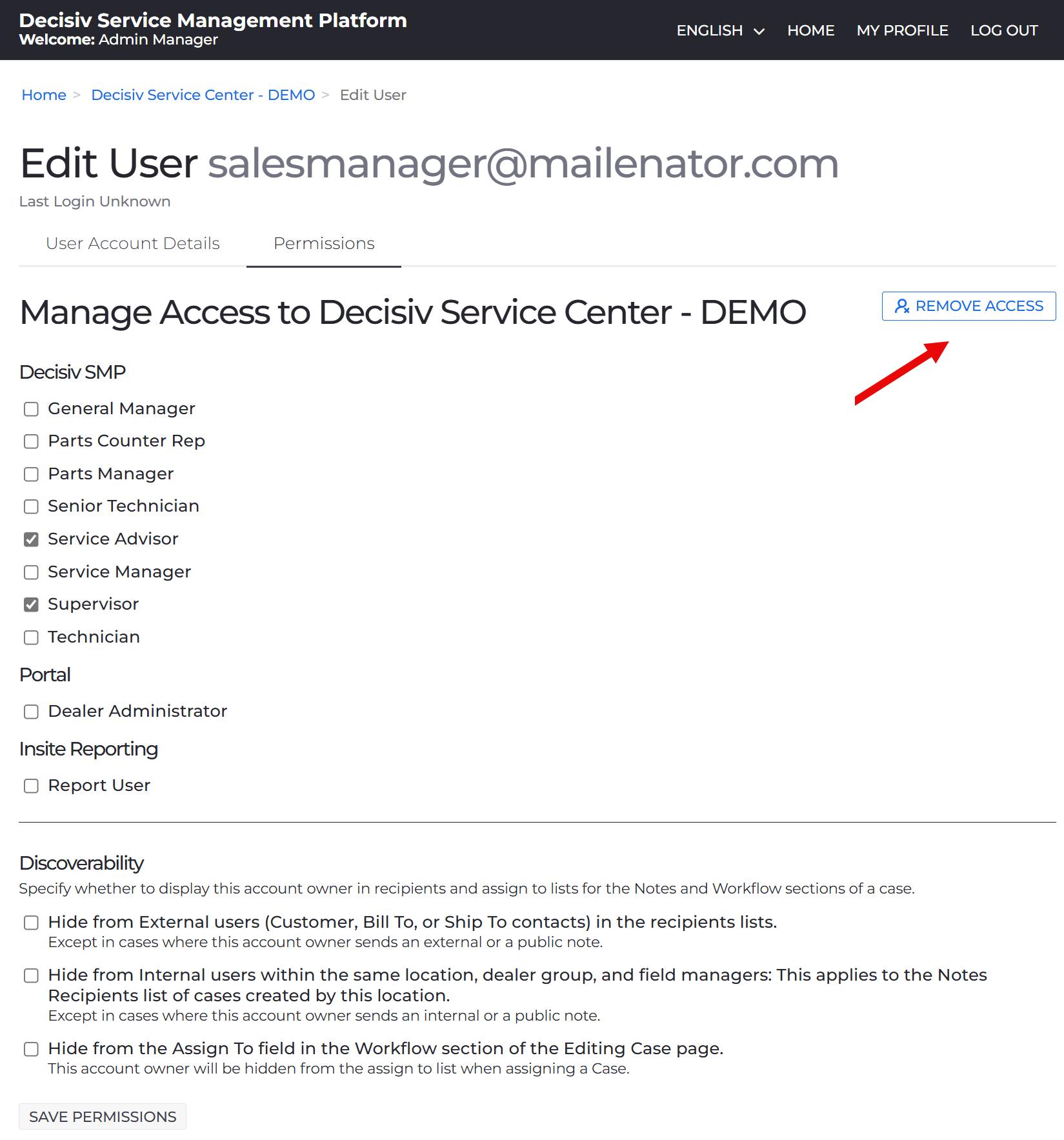
A new Remove Access button is now available on the Permissions tab. This replaces the previous method of unchecking all roles, entirely removing the user’s access to the current location.
Restore Access Functionality
When a user’s access has been removed, the Permissions tab will display the date the access was removed. A Restore Access button is available to reinstate the user’s previous roles at the location.
Removed Access Tab
The new Removed Access tab on the Manage Location screen displays users who no longer have access to the current location.
To restore a user, select the user from the Removed Access list, navigate to the Permissions tab, and click Restore Access.
Add User Process (Unchanged)
The Add User process remains the same. Location Admins can find the Add User form below the Current Access tab on the Manage Location screen.
Need help? Reach out to your support team if you have any questions about the new features.
Comments
0 comments
Please sign in to leave a comment.